We need an ICS link to connect your wedissimo availability with your external calendar. Here's how to find it for the most common calendar providers:
Google Calendar
- Go to Google Calendar
- In the left panel, hover over the calendar you want to connect
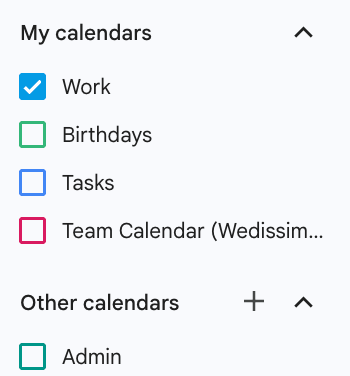
- Click the three dots (⋮) > Settings and sharing
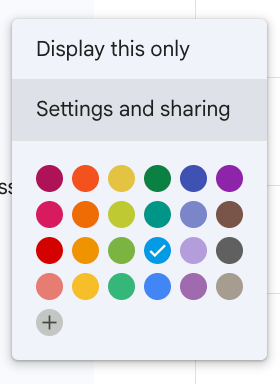
- Scroll down to the Integrate calendar section
- Copy the Public address in iCal format (the last link in that section)
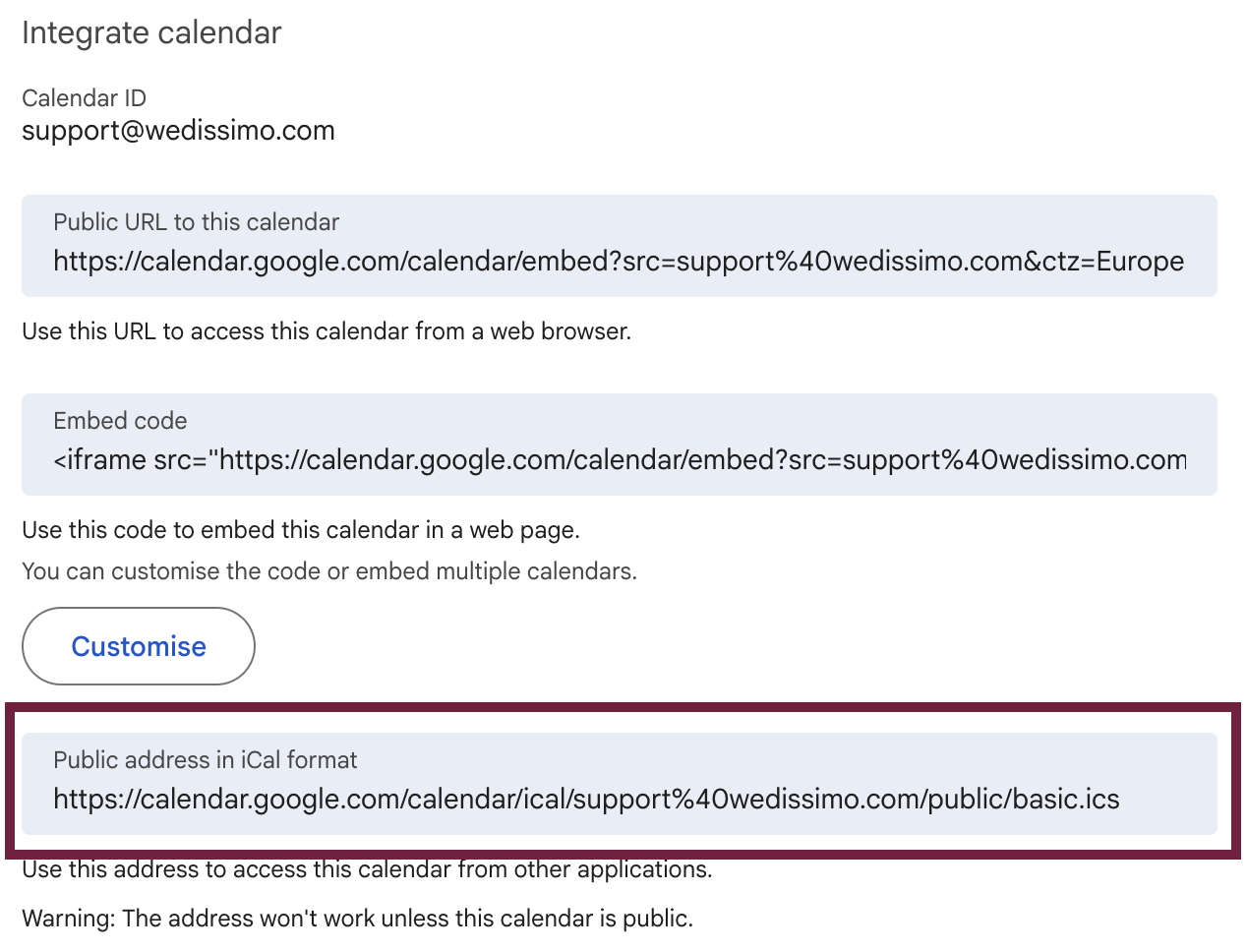
Important: Make sure your calendar is set to public, otherwise events won't sync correctly with Wedissimo.
Apple Calendar
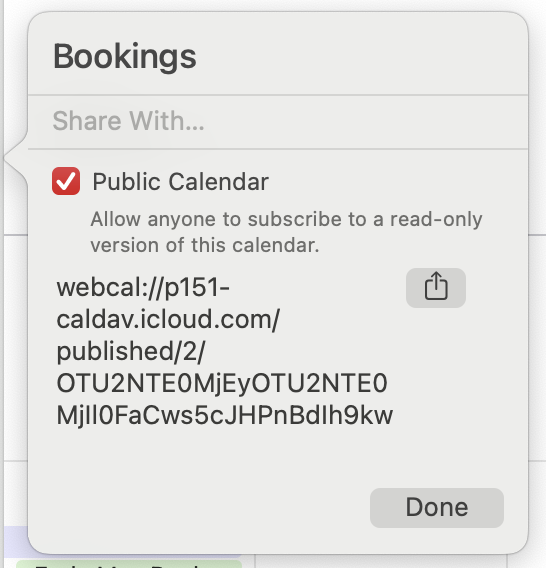
On a Mac:
- Open the Calendar app and hover over the calendar name in the left panel
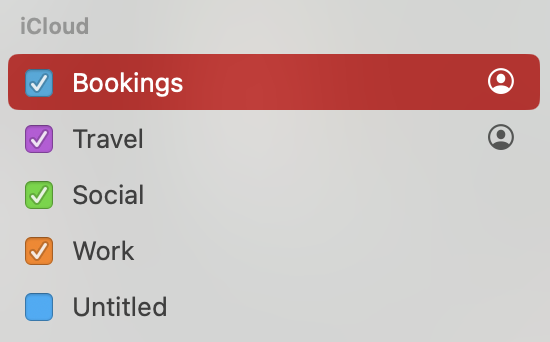
- Click the profile icon and tick Public calendar

- Copy the link provided
On iPhone/iPad:
- Open the Calendar app and tap Calendars at the bottom
- Tap the ⓘ icon next to the calendar and enable Public calendar
- Tap Share link to copy it
Outlook
- Open Outlook on the web and go to Settings > View all Outlook settings > Calendar > Shared calendars
- Under Publish a calendar, select your calendar and set your permissions
- Copy the ICS link that appears
If you use a different calendar provider, you can find help here.
Was this article helpful?
That’s Great!
Thank you for your feedback
Sorry! We couldn't be helpful
Thank you for your feedback
Feedback sent
We appreciate your effort and will try to fix the article