Yes, you can apply discounts to specific dates or packages to encourage last-minute or off-peak bookings without affecting your other prices.
Discounting a single date
- Go to the Packages tab
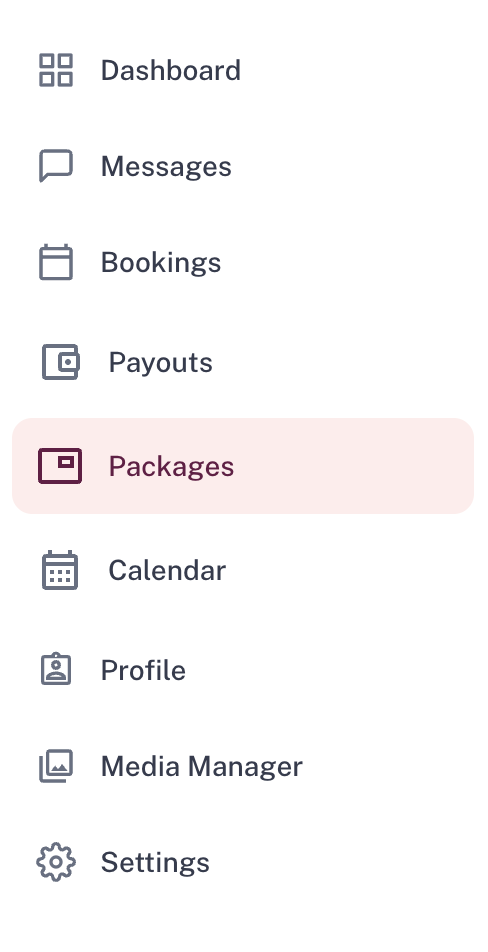
- Click into the package you want to discount
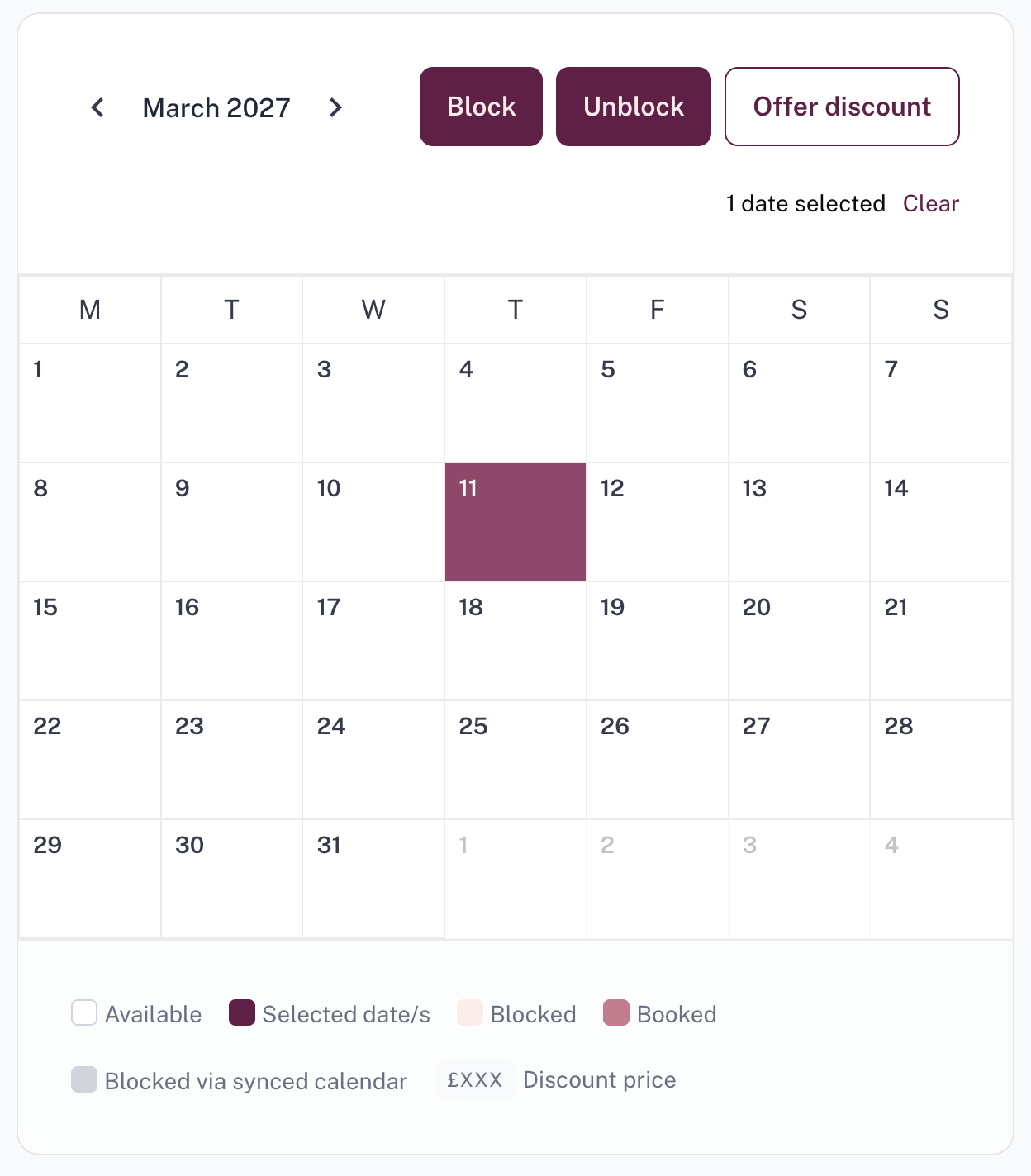
- Click the 'Manage Availability' button

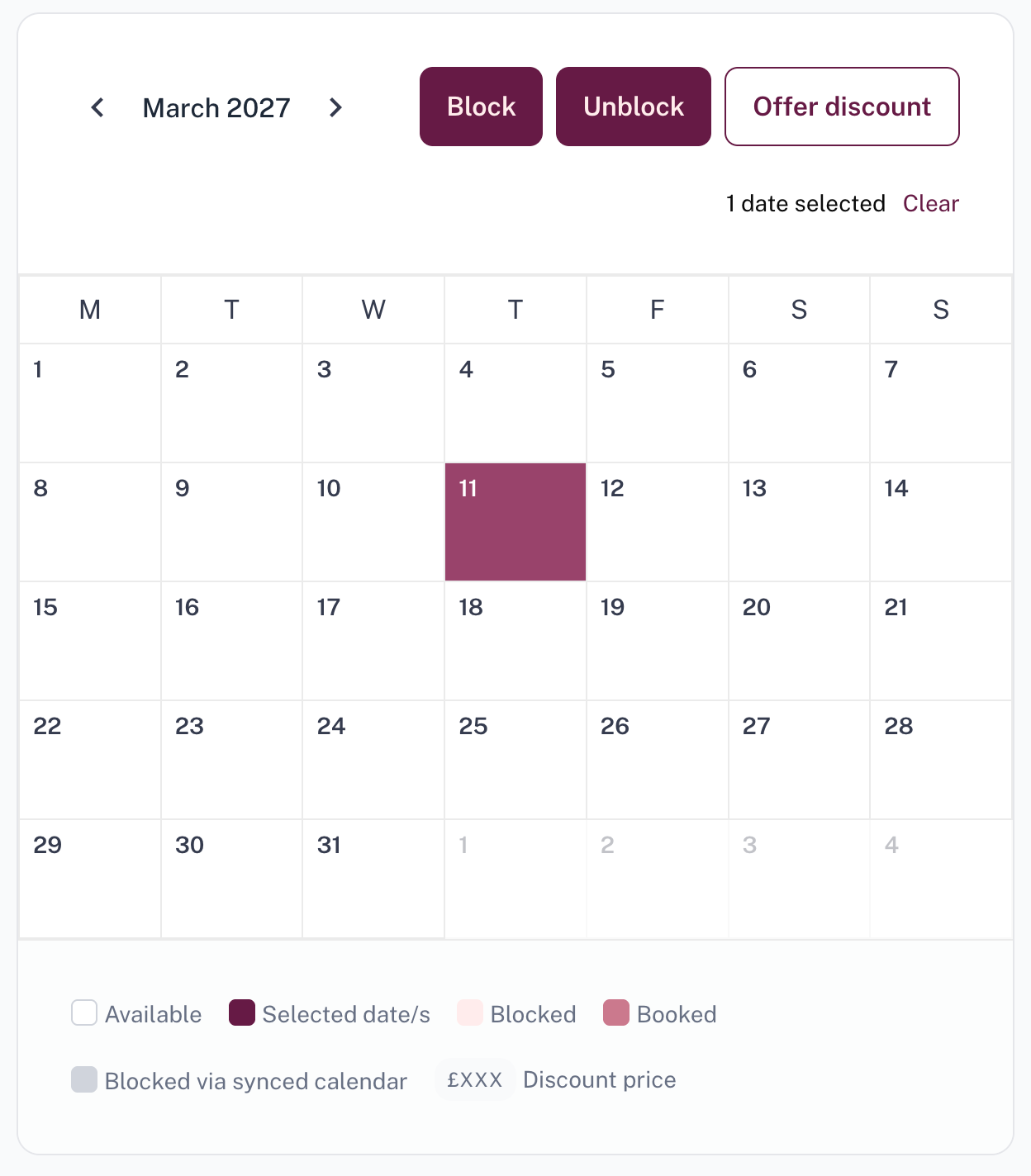
- Select the date(s) you want to discount
- Click 'Offer Discount' in the top-right corner of the calendar
- Enter the discounted price and press 'Apply discount'
Note: Enter the final package price after the discount has been applied, not the discount amount itself. For example, if the original package price is £1,000 and you would like to offer a 10% discount, you should enter £900 in this field.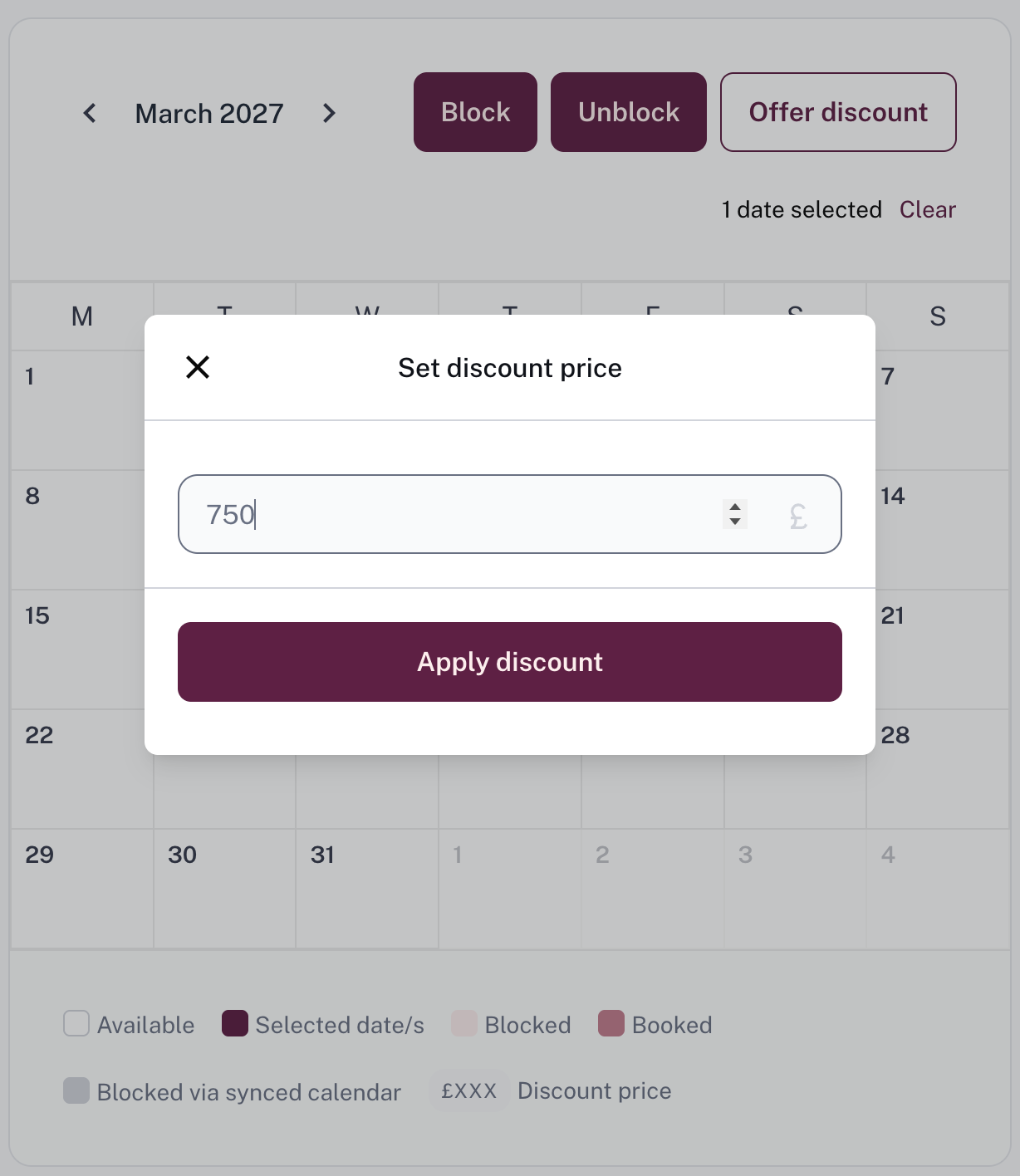
Discounting multiple dates at once
You can bulk-discount a range of dates, for example, every Monday and Tuesday in November. To do this:
- Go to the Packages tab
- Click into the package you want to discount
- Click the 'Manage Availability' button
- Scroll below the calendar to 'Block dates or offer discounts by days of the week'
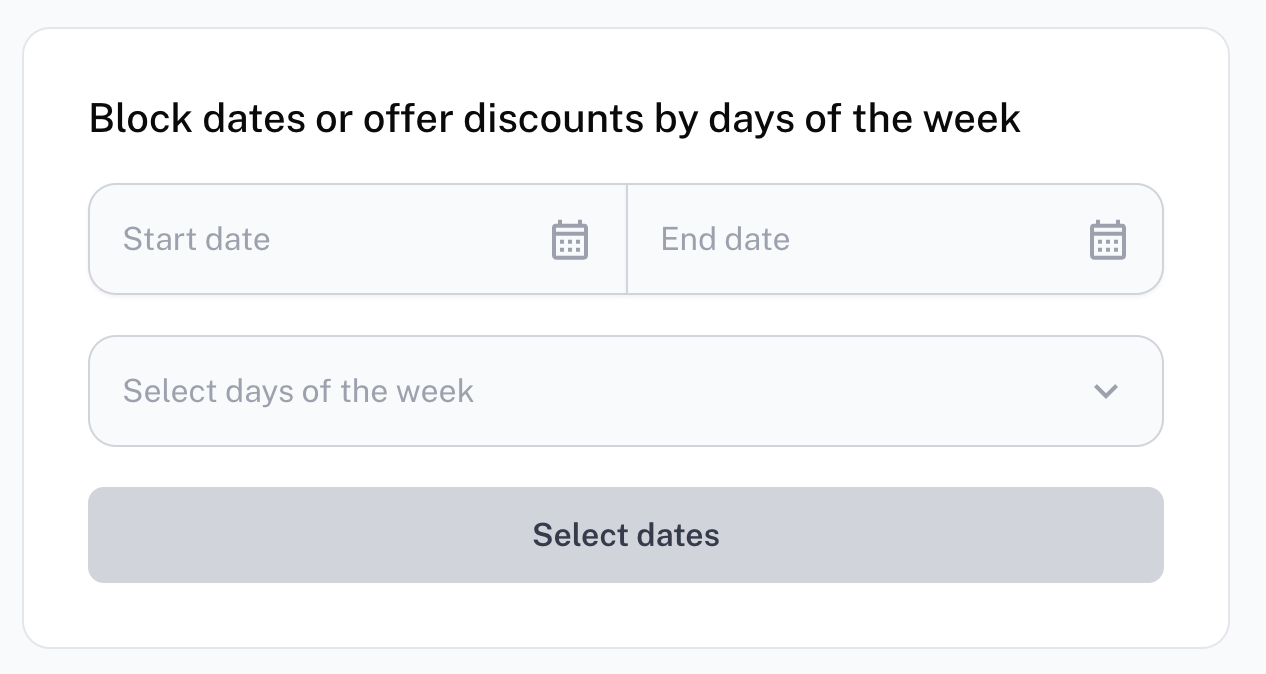
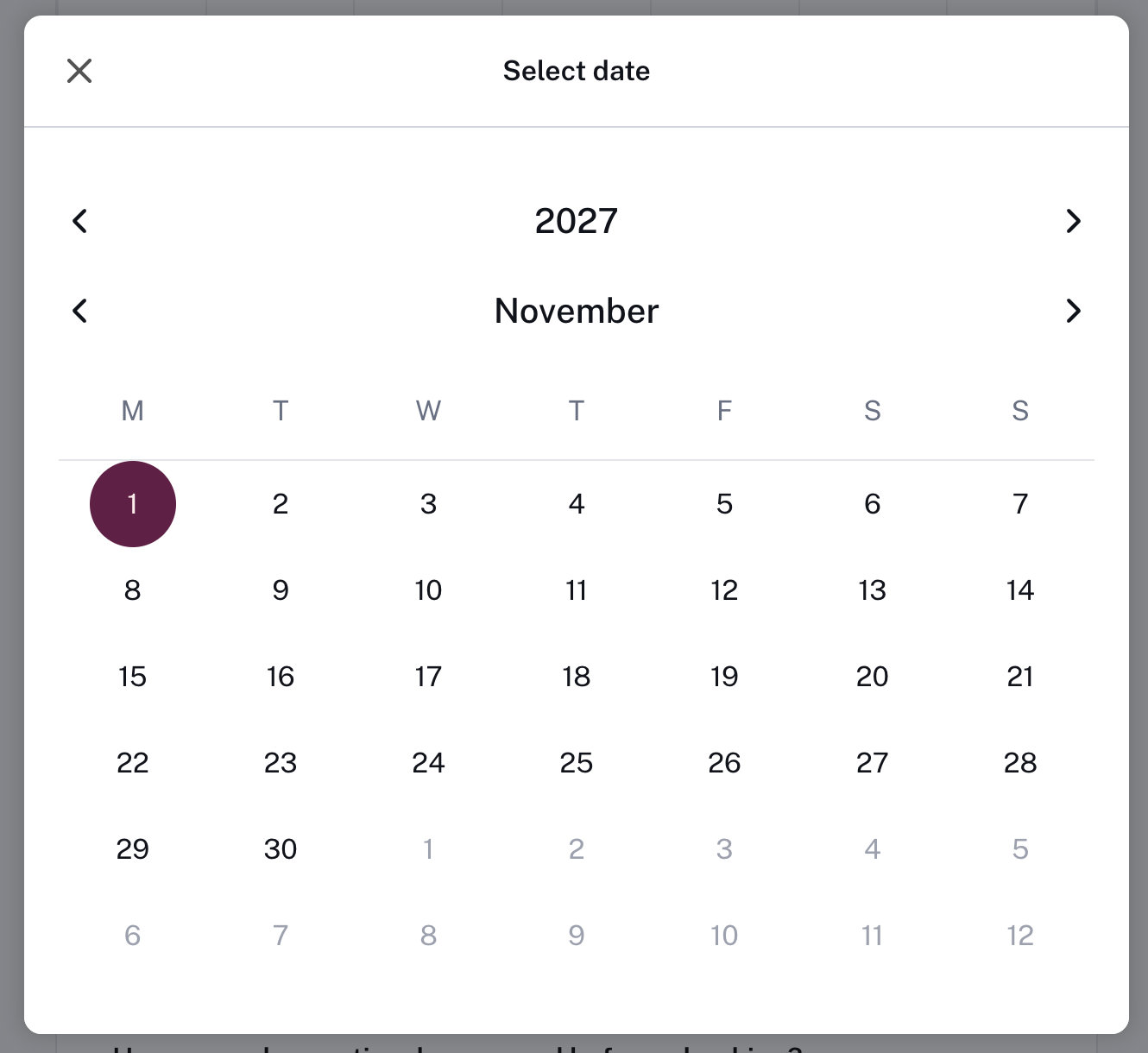
- Set your start and end date
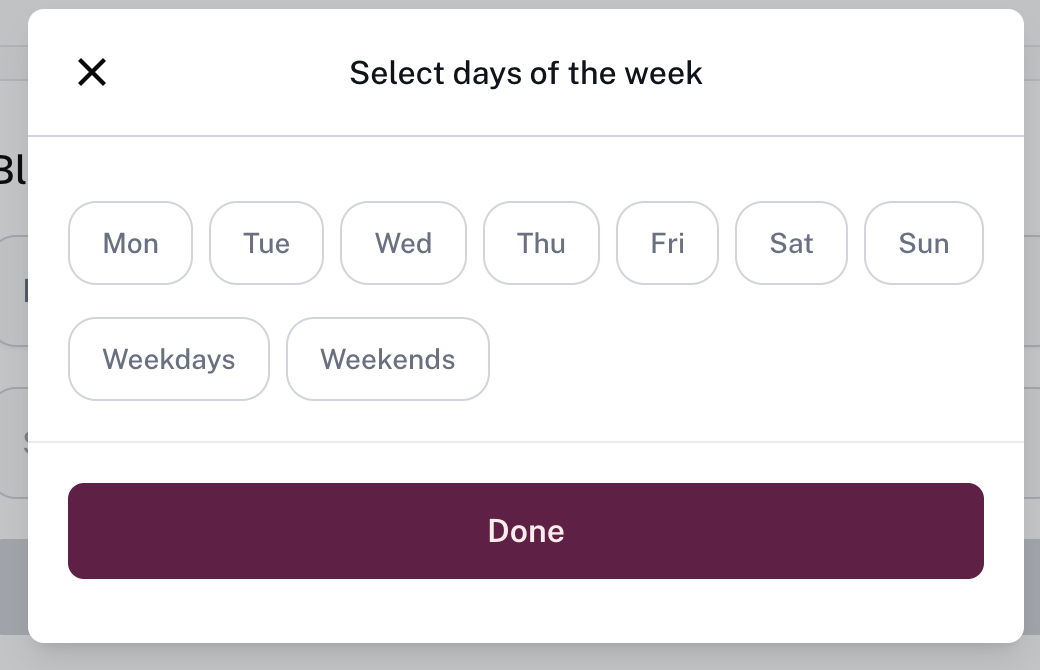
- Select which days of the week to apply the discount to
- Enter the price and click Save changes
- Click 'Offer Discount' in the top-right corner of the calendar
- Enter the discounted price and press 'Apply discount'
Note: Enter the final package price after the discount has been applied, not the discount amount itself. For example, if the original package price is £1,000 and you would like to offer a 10% discount, you should enter £900 in this field.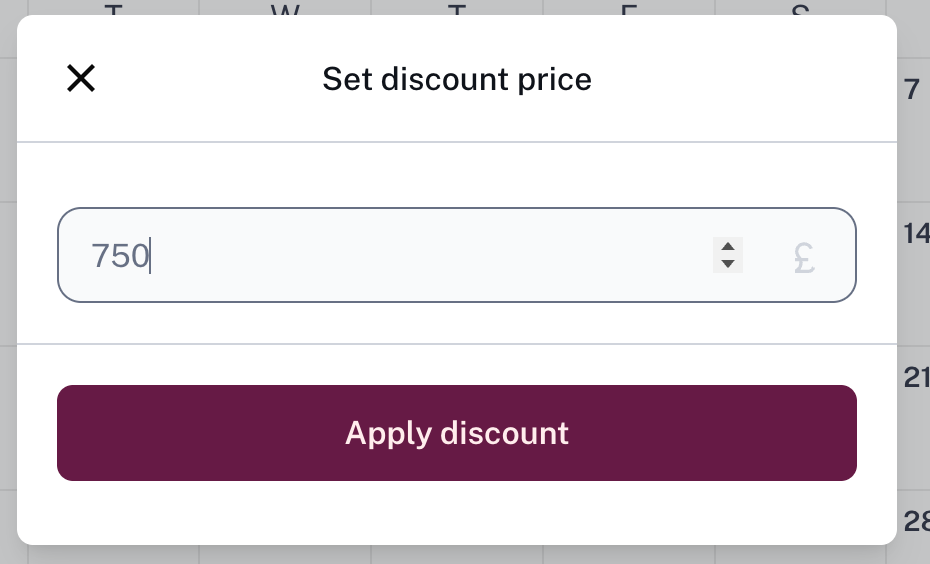
Removing a discount
Follow the same steps as setting a discount, but enter your original package price in the price field. The discount will disappear once you refresh the page.
Was this article helpful?
That’s Great!
Thank you for your feedback
Sorry! We couldn't be helpful
Thank you for your feedback
Feedback sent
We appreciate your effort and will try to fix the article